
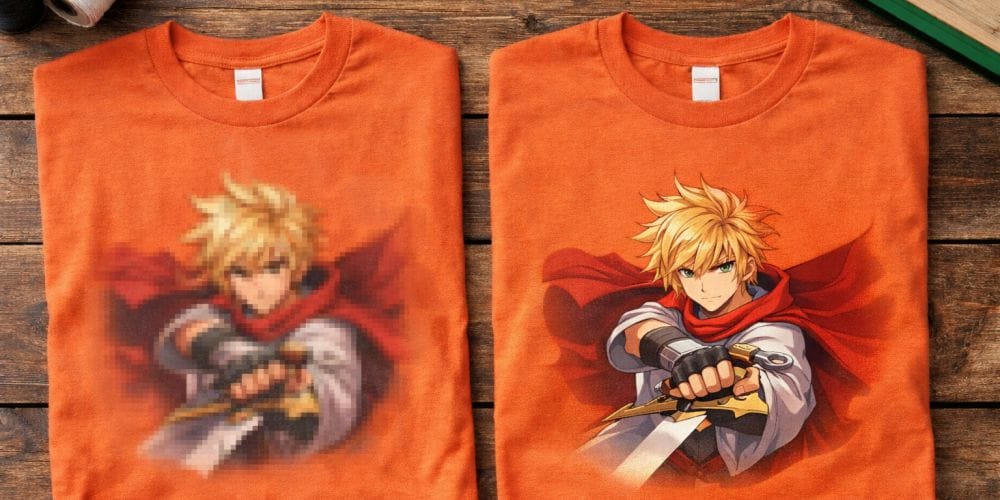
A design that looks clear on a phone can turn out soft on a T-shirt when it is printed much larger. The first thing to check is the original artwork at its intended print size. Too few pixels, a compressed copy or tiny details are common causes of blurry T-shirt prints. If the original file is sharp but the finished shirt is not, the garment and production process deserve a separate check.
Start with the actual print size, not the DPI label
Find the width of the artwork in pixels and the width you want on the shirt in inches. Divide pixels by inches to get the image’s effective PPI at that size. PPI describes the detail in the digital file; a printer’s DPI describes its output. They are related terms, but they are not interchangeable.
Pixel width ÷ print width in inches = effective PPI
A 1,200-pixel-wide image is 300 PPI at 4 inches, but only 100 PPI if enlarged to 12 inches. The file has not lost pixels; those pixels are spread across a larger area.
| Original width | Planned print width | Effective PPI | What it tells you |
|---|---|---|---|
| 1,200 px | 4 in | 300 | A reasonable starting point for a small, detailed print. |
| 1,200 px | 12 in | 100 | Likely too little detail for a close-viewed, detailed design. |
| 1,800 px | 12 in | 150 | May be usable for some artwork and methods; review the details before approving it. |
| 3,600 px | 12 in | 300 | A stronger starting point for a detailed, full-size raster design. |
For detailed raster artwork, around 300 PPI at final print size is a useful target, not a pass-or-fail rule for every design or printing method. A file marked “72 DPI” can still contain enough pixels.
Changing that label to “300 DPI” without adding real detail does not repair a small image. If you do not know the intended width yet, settle the print placement and size first, then run this check.
Match the symptom to the likely fix
| What you see | Likely issue | What to do |
|---|---|---|
| Blocky edges or visible pixels | A small raster image enlarged beyond its useful size. | Get the original high-resolution file or reduce the print size. |
| Fuzzy halos around a logo or lettering | A compressed export, screenshot or low-resolution logo inside another file. | Return to the editable original; redraw simple artwork if needed. |
| Small words, thin lines or a QR code disappear | Details are too fine at the intended physical size or for the chosen process and fabric. | Enlarge or simplify them; check the QR code at actual printed size and test whether it scans. |
| Soft edge around a cut-out photo | The source image, background removal or transparent edge may already be soft. | Inspect the original and refine the cut-out instead of adding artificial sharpening to the final export. |
A PNG can preserve crisp edges, but saving a blurry image as PNG does not restore detail. The same is true of placing a low-resolution image inside a PDF. For clean logos and text, an editable vector original is often the best starting point; photos need adequate pixel dimensions. The vector versus PNG guide explains which file to send and how to prepare it.
What to do when the source file is too small
- Look for the original. Ask your designer for the editable artwork or the full-size photo rather than copying an image from a website, a social post or a message preview.
- Use it smaller if the design allows. This increases effective PPI without inventing pixels. Check that text still reads at the new size.
- Rebuild simple logos and text. Redrawing clean shapes is usually more reliable than tracing a fuzzy screenshot. Keep the source file for future print sizes.
- Treat AI enlargement as a draft, not a repair guarantee. An upscaled file can invent edges or alter letterforms. Compare it with the original and inspect names, fine lines and logos carefully.
- Send the intended print width with the file. That lets the print team assess the artwork at the size you actually want, rather than guessing from an image displayed on a screen.
If the file is sharp but the shirt looks soft
File resolution is only one possible cause. Fabric texture, the selected print process and production settings can affect fine edges, especially on very small details. A screen mockup also cannot show every physical result on fabric. Avoid assuming that the customer file or the printer is at fault from a zoomed-in photo alone.
If the finished print seems softer than the approved artwork, keep the original file and proof, photograph the actual shirt in good light, and ask the print team to compare them. This helps separate a file problem from a production or garment issue before deciding on a remedy.
Before you send your artwork
- Confirm the intended print width and check effective PPI for raster artwork.
- Inspect text, thin strokes and cut-out edges at the size they will appear on the shirt.
- Use the original file, not a screenshot or a copy saved from a messaging app.
- Tell the print team if a QR code, fine line or small label must remain readable.
- Review the proof for content, approximate size and placement before production. Ask if you need to check a detail that a digital proof cannot settle.
Frequently asked questions
No. For raster artwork, effective PPI at the actual print size is the useful number. Around 300 PPI is a strong target for detailed work, but a lower value may be acceptable for some designs and processes. Ask for a review if you are unsure.
No. A new file format cannot recover missing detail. Find the original, print the image smaller or rebuild the artwork. A PDF may still contain a blurry image.
Save the original file and approved proof, then share clear photos of the finished shirt with your print provider. They can compare the artwork, size, garment and production result to identify the next step.
Ready to check a design for your order?
Send your original artwork and intended print size when you request a quote. For garment choices, print options and ordering details, see our custom T-shirt printing in Vancouver page. Firebird Prints sends an artwork proof before production.